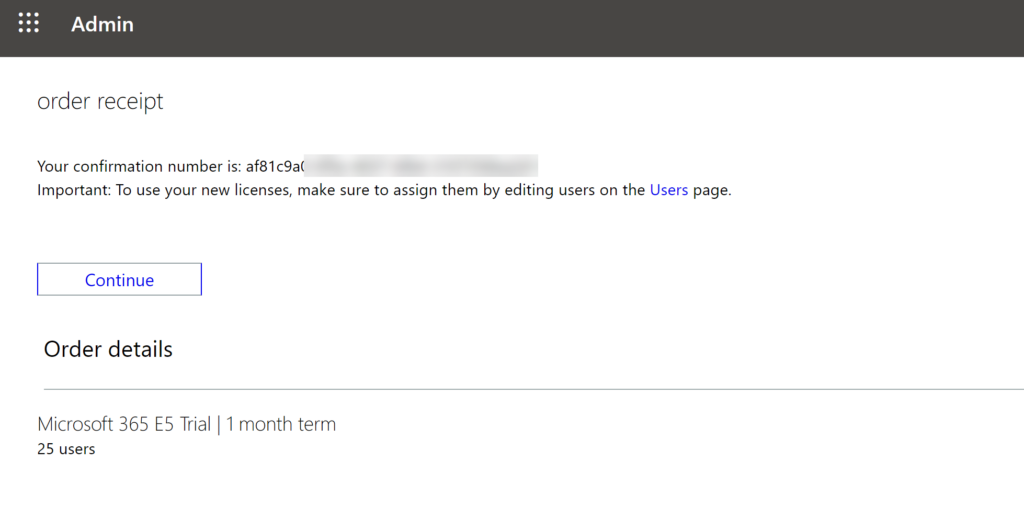
If you need to do some testing on M365 products, like kicking the tires on Microsoft Defender, you can add an E5 trial to a tenant easily (or create a tenant first if you don’t have one). I already have an M365 tenant with an O365 Business license for e-mail purposes. Here, I am going to show you how to active a full E5 license trial, which will include Microsoft Defender. Activating the trial provides 1 month of use and 25 licenses.
If you don’t have a tenant, you can create one, then add an E5 trial license. Refer to this link at Microsoft Docs, which is also documentation I am referring to as I move forward with exploring Defender:
https://docs.microsoft.com/en-us/microsoft-365/security/defender/setup-m365deval?view=o365-worldwide
Note that I have Dark mode enabled in my tenant, because I like it that way. Yours might be in Light mode which is the default.
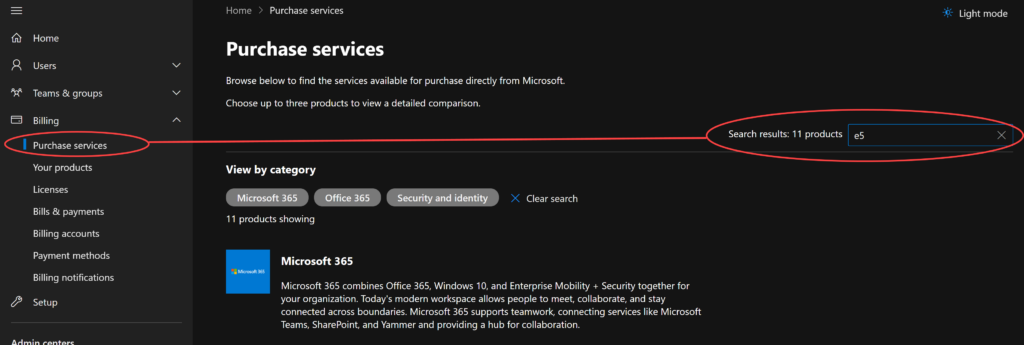
First logon to the Admin center and head over to Purchase services. This link will bring you there:
https://admin.microsoft.com/AdminPortal/Home#/catalog
Type “e5” in the search box way over on the right. This is enough to filter down to Microsoft 365 at the top of the list.
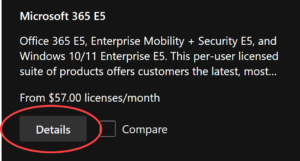
Next, hit the Details button for Microsoft 365 E5.
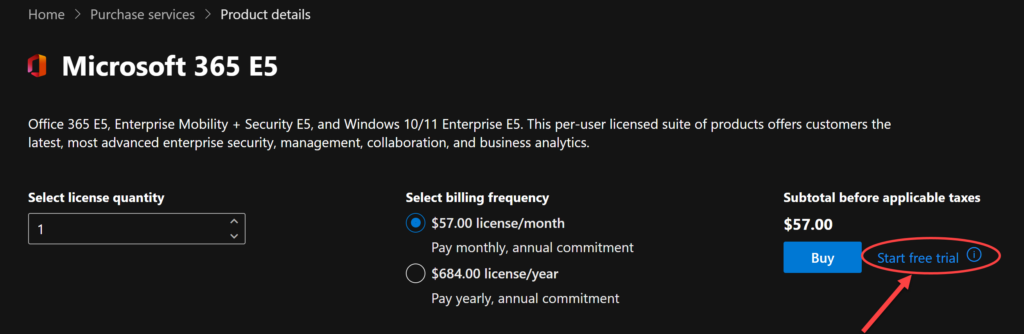
The Start free trial link is easy to miss, they want you to buy licenses not start a free trial. Skip the button and look for the link to the right as shown.
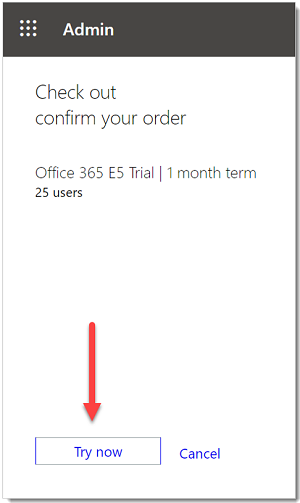
You need to confirm your order in the checkout even though you’re not paying anything.
Hit the Continue button on the receipt page and the E5 trial is active.